Every year, approximately 10 billion paper business cards are printed worldwide. Of those, an estimated 88% are thrown away within a week of being received. The ones that survive end up in a drawer, a card holder, or a pile on someone's desk — largely forgotten until they are thrown away in a desk cleanup six months later.
The business card's fundamental problem is not that the concept is outdated. The concept — sharing your contact information quickly with someone you have just met — is as relevant as ever. The problem is that paper is a terrible medium for contact information. It gets lost. It becomes outdated. It cannot be updated. And for the recipient, going from a physical card to a saved contact requires manual transcription that almost nobody does immediately, which means the card gets set aside and the contact is never properly saved.
Digital business cards with QR codes solve all of these problems at once. In this guide, we will cover what digital business cards are, why they outperform paper in nearly every practical dimension, and how to create one free using Mobily's QR code and vCard feature.
What Is a Digital Business Card?
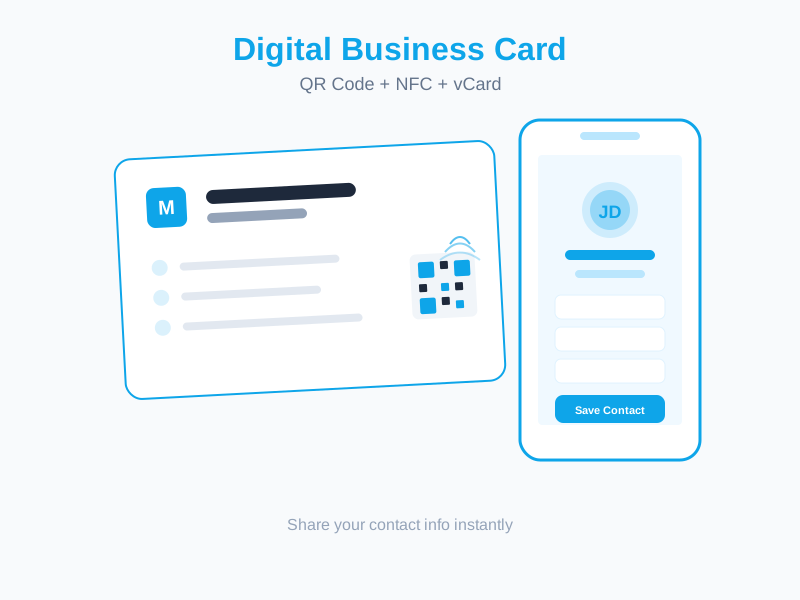
A digital business card is a structured contact record — typically in the vCard format — that can be shared electronically. When someone receives your digital business card, their device prompts them to add the contact information directly to their address book. No typing, no transcription errors, no lost cards.
A vCard (Virtual Contact File, file extension .vcf) is the universal standard format for digital contact information. It is supported natively by every major operating system — iOS, Android, Windows, macOS — and by virtually every contacts application and email client. When you create a vCard, you create a file (or a link to a file) that any device can understand and save.
What Information Can a vCard Contain?
A modern vCard supports a comprehensive range of contact fields:
- Full name, preferred name/nickname, and name pronunciation
- Job title and company name
- Multiple phone numbers (mobile, office, direct line, fax)
- Multiple email addresses (professional, support, personal)
- Website URL
- Physical address (multiple addresses supported)
- Profile photo
- Social media profiles (LinkedIn, Twitter/X, Instagram, etc.)
- Birthday (optional — some people include this for relationship-building purposes)
- Custom notes field
A paper business card can realistically contain five or six of these fields due to space constraints. A vCard contains all of them, completely formatted, saved perfectly into the recipient's contacts with a single tap.
The QR Code Bridge Between Physical and Digital
Creating a vCard file solves the digital sharing problem perfectly — for digital-first interactions like email introductions or LinkedIn messages. But what about in-person networking, where the traditional use case for a business card actually happens?
This is where the QR code comes in. A vCard QR code encodes either the vCard data directly or a link to your hosted vCard file. When someone scans the QR code with their phone, they are prompted to save your contact information immediately — the same frictionless experience as receiving a digital file, triggered from a physical scan.
The practical workflow becomes: meet someone, show them your QR code (on a phone screen, a printed card, a conference badge), they scan it, they save your contact in under five seconds. No cards exchanged, no information transcribed incorrectly, no card lost in a jacket pocket.
Static vs. Dynamic vCard QR Codes
A static vCard QR code encodes your contact information directly in the QR pattern. It works without any server or account — scan it and the data is right there. The limitation: if your phone number or email address changes, every printed copy of that QR code immediately becomes outdated. You need to reprint everything.
A dynamic vCard QR code points to a hosted vCard file on a server. The QR code pattern itself never changes — it simply contains a short redirect URL. When scanned, the device fetches your current vCard data from the server. Update your contact information in your dashboard, and every existing QR code — on printed cards, banners, slides, anywhere — immediately delivers the updated information.
For professional use, dynamic vCard QR codes are strongly recommended. Phone numbers change, job titles change, email domains change when you move to a new company. A dynamic code means your networking materials never go out of date.
Why Paper Business Cards Are Losing the Argument
The case against paper business cards is not just environmental (though that argument is increasingly relevant — 10 billion cards, most of which are discarded within a week, represents substantial waste). The practical arguments are compelling on their own.
The Transcription Problem
When someone receives a paper card and wants to save the contact, they must either type the information manually into their phone — a task that takes 60-90 seconds and produces errors — or use a card-scanning app that uses OCR technology and makes its own errors. The friction is real. Most people do not save paper card contacts immediately; they set the card aside to do it later, and "later" often never arrives.
The Outdated Information Problem
Contact information changes. Studies suggest that 40-50% of business cards become at least partially inaccurate within 12 months — phone numbers change, email addresses change, job titles change, companies are acquired or renamed. With paper cards, there is no mechanism to update existing distributed cards. With a dynamic digital business card, your contact information is always current.
The Memory Problem
Even when a paper card is saved as a contact, the recipient often cannot remember the context of the meeting when they look at the contact weeks later. A digital business card can include a notes field with context about how you met, what you discussed, or a specific follow-up item — ensuring the contact record carries enough context to be actionable.
The Accessibility Problem
Small text on a card is a real accessibility concern for people with vision impairments. Digital contact records are readable at any font size, work with screen readers, and are compatible with accessibility tools in a way that physical print cannot match.
PIPEDA and Privacy Advantages of Digital Business Cards
For Canadian professionals, there is an additional dimension to consider: privacy. When you hand someone a paper card, you have no visibility into how that information is used, stored, or shared. Your contact information — phone number, email, company — may end up in data brokers, marketing lists, or sold to third parties without your knowledge or consent.
A hosted digital business card gives you control. You decide what information to include. You can update or remove information at any time. If you choose a Canadian-hosted solution like Mobily, your vCard data is processed and stored under Canadian law, in accordance with PIPEDA's principles of data minimization, purpose limitation, and individual access rights.
This matters particularly for professionals in regulated sectors. A healthcare provider who includes their practice address and direct line on a business card is sharing information that, while not clinical in nature, represents personal professional information. Knowing exactly where that data is hosted and under what privacy framework adds a layer of professional due diligence.
How to Create Your Digital Business Card on Mobily
Creating a professional digital business card with a shareable QR code on Mobily takes under 10 minutes. Here is the complete step-by-step process.
Step 1: Create Your Free Account
Go to mobily.ca/register and create a free account. No credit card is required. Your account is active immediately after registration.
Step 2: Navigate to Digital Business Card / vCard
From your dashboard, locate the Digital Business Card section in the sidebar. Click "Create New Card" to open the vCard editor.
Step 3: Fill In Your Contact Information
Complete the fields that are relevant to your professional identity:
- Full name — use the exact name you want saved in contacts. If you go by a nickname professionally, use that.
- Job title — be specific ("Senior Account Manager" is more useful than "Manager").
- Company name — include the full legal or trading name as appropriate.
- Email address — your primary professional email. You can add a secondary email if relevant.
- Phone numbers — include your mobile number at minimum. Add a direct office line if applicable. Include the country code (
+1for Canada and the US) so the number is dialable by contacts in other countries. - Website — your company website, personal portfolio, or LinkedIn profile URL.
- Physical address — your office address if you want it included. This is optional — many professionals omit the physical address for privacy reasons and include only digital contact points.
Step 4: Upload Your Profile Photo
A professional headshot dramatically increases the value of your digital business card. When someone scans your QR code and saves your contact, your photo appears in their address book next to your name. The next time they search their contacts or see your name in a calendar invite, they will recognize you immediately.
Use a recent, professionally taken or well-lit photo with a neutral background. Square crop, 400x400 pixels or larger. Avoid photos where you are in a group, wearing sunglasses, or at significant distance from the camera.
Step 5: Add Social Media Profiles (Optional)
For professionals whose social presence is a meaningful part of their professional identity — LinkedIn is the most universally relevant — adding profile links to your vCard allows contacts to connect with you across platforms immediately after saving your contact. This is particularly useful for sales professionals, consultants, and anyone whose professional relationship often extends across multiple touchpoints.
Step 6: Generate Your QR Code
Once your vCard is saved, navigate to the QR code section for your card. Mobily generates a dynamic vCard QR code automatically. You can customize the QR code appearance — colour scheme, corner style, embed your company logo — and download it in PNG or SVG format.
Download SVG for print. SVG (Scalable Vector Graphics) is a vector format that can be scaled to any size without pixelation. Use SVG when sending your QR code to a printer, a designer, or when embedding it in a print layout. PNG is suitable for digital use (email signatures, slide presentations, website embeds).
Step 7: Test Before Distributing
Before putting your QR code on business cards, conference badges, or any other materials, test it with multiple devices:
- An iPhone using the native camera app
- An Android phone using the native camera app
- If possible, a device with a lower-quality camera to check that the code scans reliably under non-ideal conditions
Verify that the contact information saved correctly — all fields populated, phone number formatted correctly with country code, email address correct. A typo in a phone number in a vCard that has been distributed at scale is very difficult to correct if you are using a static QR code (you would need to reprint everything). With Mobily's dynamic vCard, you can correct the error in your dashboard and all QR codes immediately serve the corrected information.
Step 8: Add the QR Code to Your Materials
Common placements for vCard QR codes:
- Business cards — the back of a business card is ideal. Print a QR code large enough to scan easily (minimum 2.5cm x 2.5cm) with a clear label: "Scan to save my contact."
- Email signature — embed a small version of your QR code in your email signature. People reading your email on mobile can scan directly from their screen.
- LinkedIn profile or About section — link to your digital business card page in your LinkedIn bio.
- Conference badge insert — many conferences allow inserting a card behind your badge. A QR-fronted card there ensures every networking interaction can end with a contact save.
- Presentation slides — the final slide of any presentation is a natural moment to share your contact. A QR code on the last slide takes 5 seconds to scan and ensures every attendee who wants to reach you can do so without writing anything down.
- Physical office or reception — a small QR code display at a reception desk or on a waiting room table allows visitors to save your company contact without being handed anything.
Digital Business Cards for Teams
The individual use case for digital business cards is clear, but the team use case offers additional advantages. On Mobily's Business plan, you can manage digital business cards for your entire team from a single account — ensuring consistent branding across all employee vCards, centralizing updates when company contact information changes, and maintaining a directory of all team members' QR codes for event and conference use.
When a team member's contact information changes — a new direct line, a new title after a promotion, a new office location — updating it in the central account immediately refreshes all of their distributed QR codes. No reprinting, no tracking down which events their cards were distributed at, no outdated information circulating.
Start Networking Smarter Today
Creating a digital business card costs nothing and takes less time than a trip to a print shop to order traditional cards. The recipient experience is dramatically better — one scan, one tap, contact saved permanently. Your information is always current. Your professional photo appears in their address book. And you have one less thing to reprint every time something changes.
Create your free Mobily account and build your digital business card today. The free plan includes the vCard feature and QR code generation with no time limit. When you are ready to unlock custom domains, dynamic QR code analytics, and team management, our paid plans start at $19 per month CAD.
At the next networking event you attend, you will not need to reach into your wallet. You will open your phone, show your QR code, and your new contact will have everything they need in five seconds flat.